

✍️ Adding Questions
Go to the Grant Editor tab → Cycle Pages subtab.
Select the Program and Cycle you wish to add to the page.
Scroll down to the page type dropdown. Select Custom Calculation.
If templates are enabled and you would like to insert an existing template, click the template dropdown to select a saved Custom Calculation page to be added.
Name the page and adjust the sequence.
Click Add.
Click the blue ✏️ (pencil icon) next to the page's name.
On the page editor, add custom instructions in the text editor at the top of the page.
Add questions using the Add New Question dropdown and select the Question Type from the dropdown menu.
🔢 Custom Calculation Question Types
Question Type | Purpose and Function |
Freeform Item | Asks for a numerical item but gives the applicant the option to label it as they see fit. After adding, Edit the field to designate the budget type (Expense, Income, In-Kind, or Informational). |
Numerical Item | Asks for a specific numerical item. After adding, Edit the field to select the budget data type (Expense, Income, In-Kind, or Informational). |
Info Only | Used to enter directive text throughout the page for guidance. |
Sum Numerical Item | Use this tool to automatically add up numbers from other questions. |
Save Button | Adds additional Save Buttons to your page. |

📸Screenshot of the Sum Numerical Field editor showing the Start Sequence Question and End Question dropdown.
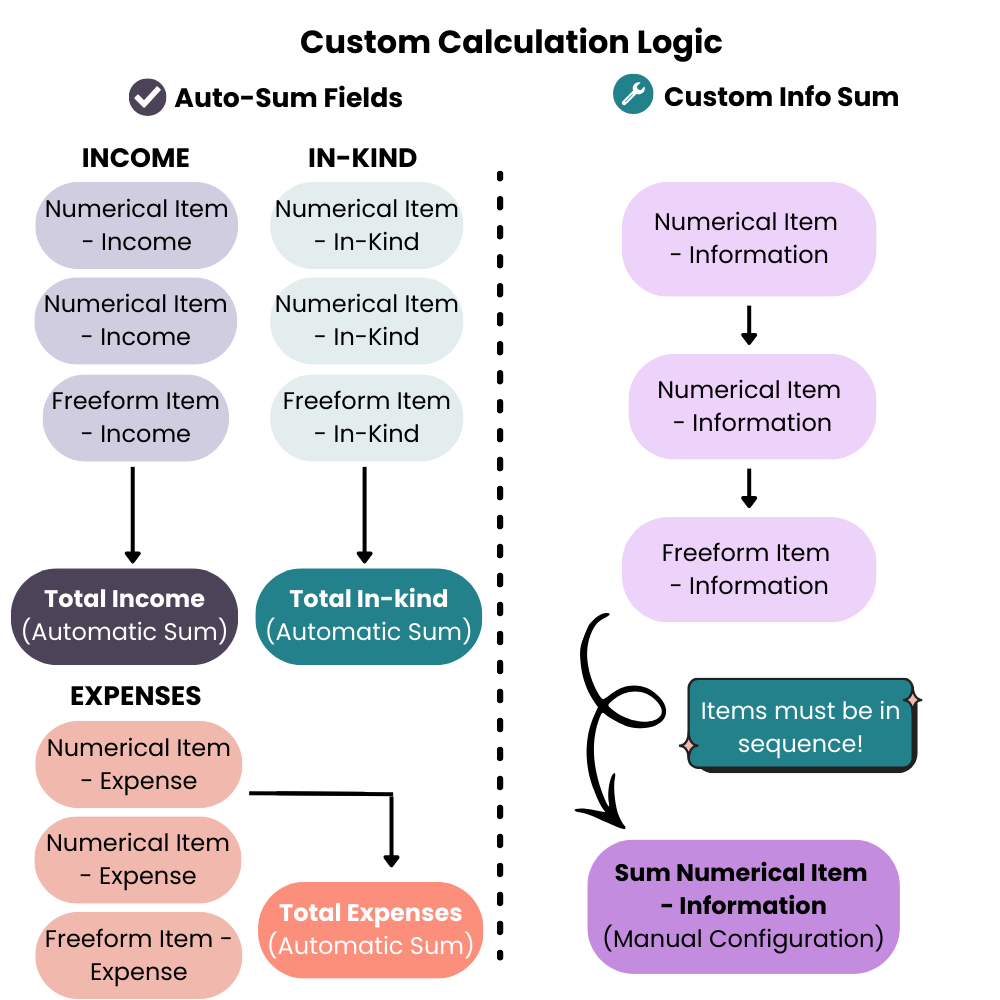
👉 View the graphic with alt-text.
Notes and Tips
📝 Notes:
If you use Informational fields, you must use a Sum Numerical Item to designate which sequence of fields should be added together.
Informational items must be in sequence to be totaled by a Sum Numerical Item and cannot be randomly placed throughout the page.
If you clone a cycle or use a template with Custom Calculation pages, re-sync your sequences:
Go to the Cycle Pages tab → Grant Editor subtab → Page Editor section.
Click the blue ✏️ (pencil icon) on any Sum Numerical Fields.
Verify the Start/End Question selections.
Click Update to save.
💡 Tip: A Save Button appears at the bottom of the page by default. Add additional Save Buttons when your page exceeds 20 fields.
