


View and Manage Applications
View by Status
View the number of applications in every available status. Click the number next to a status to view only those applications.
View and Manage Applicant Submissions
Access a read-only version of the application. Add internal admin comments.
Log in as the applicant. Permanently Delete an application.
✨ View and Manage Applications Tutorial
Change Application Status
Update an individual application's status using the dropdown menu in the Status column. Click Update to save the change.
Update the Status for multiple applications simultaneously by checking the boxes in the far-left column and using the Mass Update button.
Add Tags to Applications
Create and apply up to five internal tags (max 12 characters, alphanumeric only) to applications for easier sorting and filtering. ✨Tags Tutorial
Managing the Dashboard
Search and Filter Applications
Search the dashboard by Name, Legal Name, Application ID, or Tag. Narrow results using advanced filters like Status, User Type, Tags, Category-Select responses, and Panel Assignment. ✨ Search and Filter Tutorial
Customize Dashboard Columns
Add up to four additional columns (e.g., Email, Tags, Panel Assignment) beyond the default fields. Sort the table by clicking column headers. ✨ Customize Columns Tutorial
Assign Applications to Panel
Select the appropriate review panel for each application using the dropdown in the Panel column (Requires the correct application status).
Update the Panel assignment for multiple applications simultaneously by checking the boxes in the far-left column and using the Mass Update button.
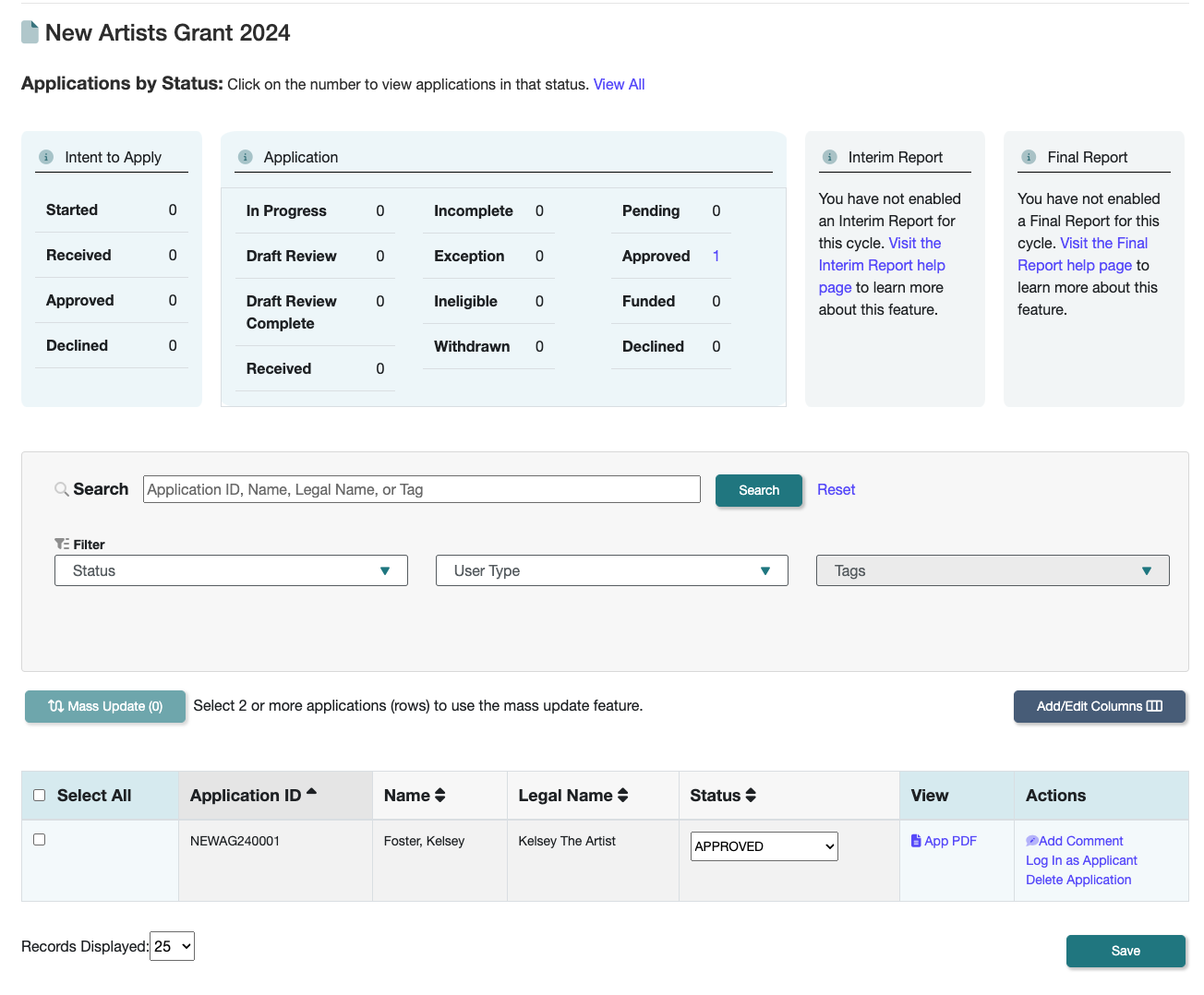
📸 Screenshot of the Grant Manager Dashboard page.
🎥 15-second video showing where to find the Add/Edit Columns button and clicking options to add columns to the dashboard.