


🎥 Click here for video alt-text.
An instructional video titled "Fundamental: Create a Panel" by GO Smart. The video guides administrators through the "Panel Editor" to set up a new review process. It demonstrates selecting a specific grant program and cycle, then using the "Create New Panel" tool to configure essential details, including the panel name, open and close dates for reviewers, and specific display settings like allowing general comments or sorting applications for the panelists.
1️⃣ Configure Your Panel
Go to the Panel Editor and select the Program and Cycle.
Click Create New Panel.
Enter a name for your panel.
Set optional settings:
Open/close dates (default is today through 365 days).
Enable Panel Book to allow panelists to generate a single file of all assigned applications.
Enable General comments box for feedback not tied to a criterion.
Set Panel sort (default is by Application #).
Provide General instructions for context and guidance.
Click Save.
💡Tips:
Keep panel names concise (e.g., "Visual Arts," "Region 1").
Add details for your panelists in the Instructions section if you enable General Comments.
Link to a detailed criteria rubric in your general instructions for longer explanations.
2️⃣ Create Panel Scoring (Criteria)
The Panel Scoring section serves as the scorecard for your panelists.
Go to the Panel Scoring tab.
To add new criteria:
Enter the criteria name (e.g., Impact, Artistic Quality).
Add a short description.
Set the max score (0–100; panel max total is 900).
Click Add.
To import criteria:
Click Import Criteria.
Select the desired program, cycle, and panel.
Click Import Criteria to see the copied criteria in the Saved Criteria section.
To manage saved criteria:
Drag to reorder.
Click the blue ✏️ (pencil icon) to edit or the red 🗑 (trash icon) to delete.
Click Save Criteria Order to finalize the arrangement.
💡Tips:
Avoid using numerals like "Criteria 1" in Criteria Titles as the system automatically numbers them.
Keep descriptions concise due to character limits. Link to a detailed criteria rubric in your general instructions for longer explanations. View this step-by-step guide on how to link to a PDF in the panel instructions.
Aim for no more than 10 criteria for clarity.
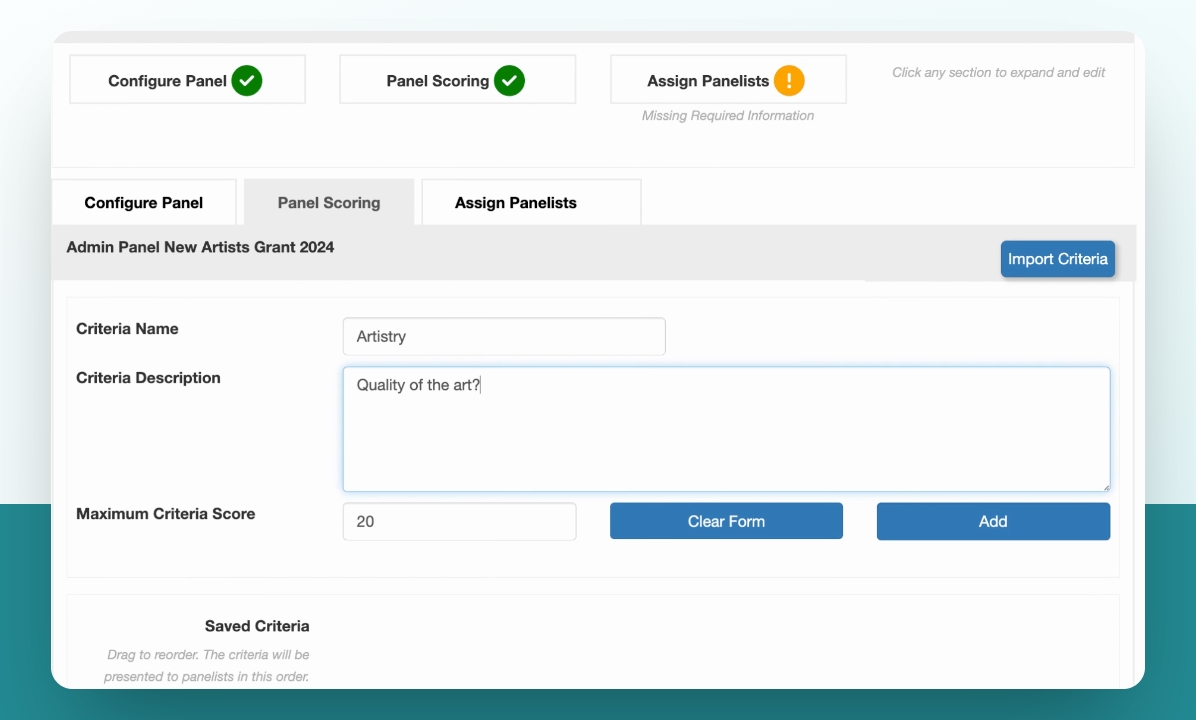
📸 Screenshot image of a criteria being created in the Panelist Editor
📝 Important Notes on Panel Scoring:
Scores range from 0 to the maximum you set.
Every criteria must be scored to display totals on the panelists' dashboard.
To collect comments only, create a zero-point criterion and instruct panelists to enter "0" in the score field for these items.
3️⃣ Assign Panelists
Go to the Assign Panelists tab.
Search or select available panelists.
Click Save.
To unassign panelists, click the red X next to their name and click Save.
💡Tips:
Panelists can serve on multiple panels in a cycle.
Add new panelists to your site using the User Editor before returning here to assign them.
Each application can belong to only one panel.
If you test as a panelist, your scores count.
Set up an “Admin” panel if you want to leave notes or master scores or comments during panel meetings.
🎥 12-second video showing the process of searching and adding panelists in the Panelist Editor.
4️⃣ Assign Applications
From the Grant Manager Dashboard, assign applications to your panels.
Panelists can only see a panel after at least one application is assigned. View this in-depth walkthrough of assigning applications to a panel.
⚠️ Alert: No page or question can be hidden during a panel, with the exception of Intent to Apply and Multiple Submission page content. However, uploaded materials to either of these pages will be displayed to the panelists.
✔️ Manage Existing Panels
In the Panel Editor, select the Program and Cycle.
Modify the panel by choosing a tab (Configure, Scoring, Assign Panelists).
Delete the panel by clicking the red 🗑 (trash icon).
⚠️ Locked Panels
A black lock icon on the panel means at least one panelist has scored at least one criterion.
Locked panels cannot be deleted, and criteria cannot be removed or edited (only new ones can be added).
To unlock a panel, reset scores for all panelists—this permanently deletes their work.
📝 Notes:
You may add new criteria after panelists have scored. Previously completed scorecards will then display to panelists with Incomplete labels.
A yellow exclamation point on any section of the panel editor highlights sections that must be completed before a panel is ready for application assignment.