

⚙️ Generate a Panel Book (Admin)
Go to the Reports tab → Panel Book subtab.
Select the Program and Cycle from the dropdown menus.
Select the desired statuses.
Select a sorting option from the Sort By dropdown (App # is selected by default).
Click Build Report.
Click View Panel Book for reports with five or fewer applications to open the HTML view.
Click Print PDF to create a downloadable file.
🎥 Click here for video alt-text.
This 18-second video shows the administrative interface of the GO Smart platform as a user configures and generates a Panel Book. Section 1: Accessing the Panel Book Builder The video begins on the main "Administration" dashboard. Menu Selection: The user clicks the Reports tab in the top navigation bar. Report Type: From the left-hand sidebar, the user selects Panel Book. Section 2: Selecting Report Parameters. The screen displays the ".Kelsey's World of Grants Panel Book" builder. Program and Cycle: The user selects "Kelsey's Amazing Grant of Money and Mystery" as the program and "Kelsey's Amazing Grant of Money and Mystery 2026" as the cycle. Status Filtering: The user scrolls through a multi-select list titled "Statuses," highlighting various application stages from "Intent to Apply Started" to "Final Report Exception." Sorting Options: * The Primary Sort is changed from "Application Number" to "Applicant Name". The Secondary Sort is changed from "Application Number" to "Date Submitted”. Section 3: Generating the Report. The user clicks the blue Build Report button at the bottom of the page. Processing Notification: A message appears stating, "This panel book requires offline generation due to its size. A link to the panel book will be emailed to you."
⚠️ Alert:
Regenerate the panel book every time the application criteria or statuses change.
📝 Notes:
Reports with more than five applications are generated in the background. An email containing links to the HTML and PDF versions will be sent once the process is complete.
The URL link for the panel book remains the same every time it is generated. This link is protected; only logged-in administrators and panelists can view the book.
🛠️ Generate a Panel Book (Panelists)
If enabled, panelists can generate their own panel book.
Log in with a panelist account at admin.gosmart.org.
Select a panel from the dropdown.
The Panel Book button will display under the Score Applicants button.
Once clicked, the panel book will be generated.
Small panels will generate immediately, and the panelist will be able to click the "Open Panelbook" button.
Panels with five or more applications will be emailed to the panelists' on-file email address.
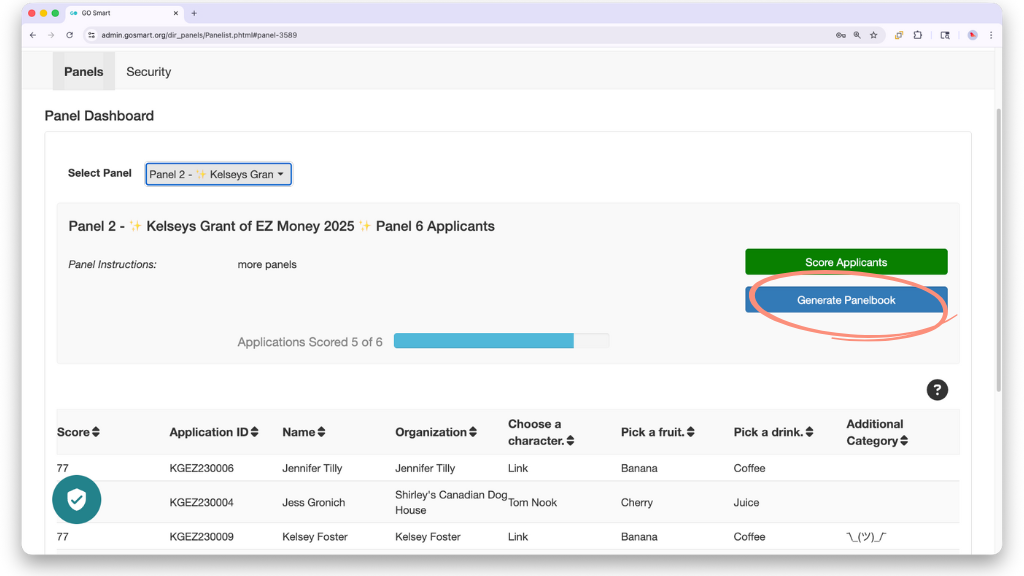
📸 Screenshot showing how to locate the 'Generate Panebook' button, circled in red on the right side of the Panel Dashboard interface.
⚠️ Alert: Panel books must be enabled for panelists to generate their own. To enable, go to the Panel tab, edit the panel, and in the Configure Panel tab, turn on the "Display Panelbook to Panelists" toggle.
📝 Note: Panelists only see applications assigned to their specific panel.
💡 Tip: If a panelist is not seeing their panel book in their inbox, instruct them to check their Spam folders and add noreply@gosmart.org to their whitelists to ensure receipt of system emails.
