

🏗️ Step 1: Enable the Feature
Before applicants can submit a draft, activate the setting within your specific cycle.
Go to the Grant Editor tab → Program Cycles subtab → Applicant Access & Dates section.
Find the Draft Review field and set it to Yes.
Select a Draft Review Deadline Date.
Scroll down and click Save Changes.
🎥 Click here for video alt-text.
A screen recording of the GO Smart admin portal showing a user updating a grant cycle's deadlines. Navigation: The user clicks on the Grant Editor tab and selects Program Cycles from the left-hand sidebar. Selection: Under the Program Cycles editor, the user selects "Artists Grants" from the Program dropdown and "Established Artists Grant 2025" from the Cycle dropdown. Configuration: Within the Applicant Access & Dates tab, the user scrolls down to the Offer Draft Review section. Editing: The user changes the "Offer Draft Review" toggle from "No" to "Yes". They then open a calendar tool for the Draft Review Deadline and update the date to February 28, 2026. Saving: After also toggling "Offer Final Report" to "Yes," the user clicks the green Save Changes button at the bottom of the page. Confirmation: A notification appears stating "Program Cycle successfully modified".
📝 Note: This date will automatically display for applicants on their "Grant Applications & Forms" tab so they know exactly how much time they have to request a critique.
✏️ Step 2: Customize Your Messaging
Go to the Grant Editor tab → Program Cycles subtab → Additional Text section to configure your submission and confirmation messages.
Draft Review Submission Text: Add language that applicants will see on the "Application Submit" page just before they hit the button.
Draft Review Confirmation Text: Create a short, one-time message that appears immediately after they submit.
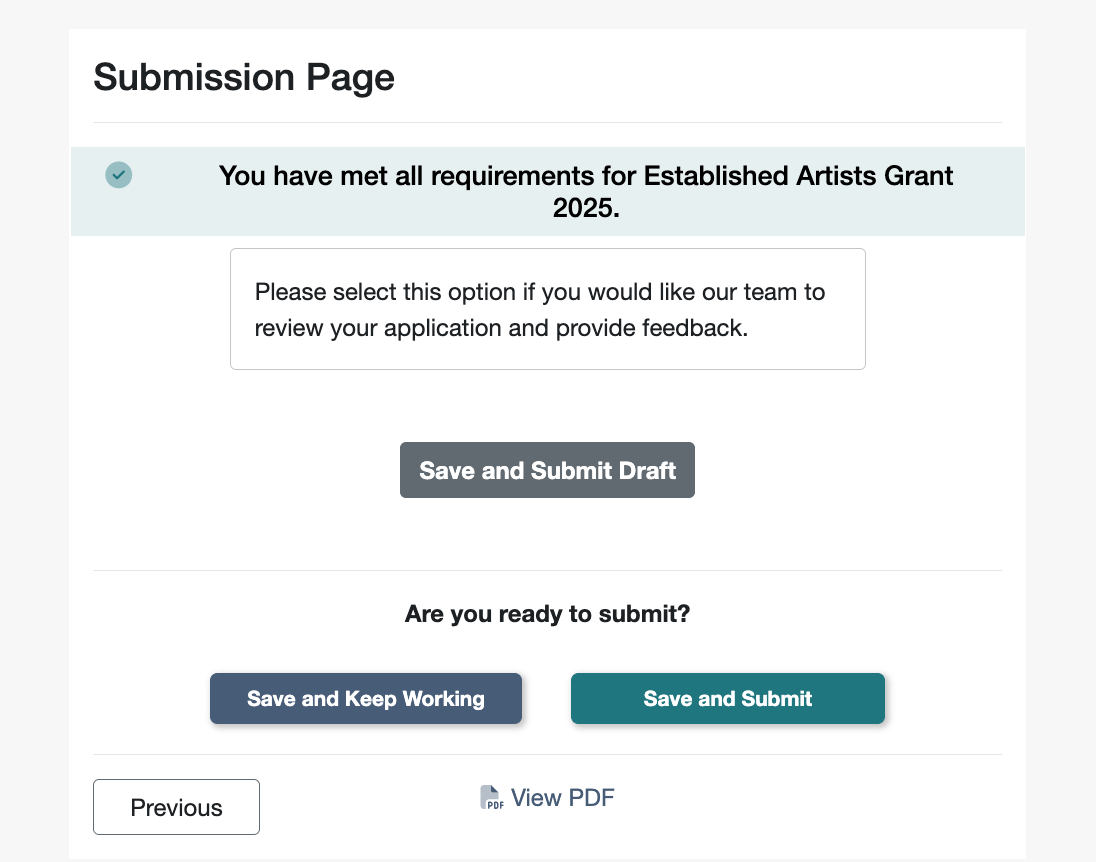
📸 Screenshot of a grant application submission page with the option to Save and Submit Draft for draft review.
💡 Tips:
Set timing expectations in your review confirmation text. Try: "Thank you for submitting your draft. Our team will review this and respond with feedback by [Date]."
Set up automated emails for the Draft Review or Draft Review Complete statuses via Grant Editor → Status Mailer to keep applicants informed throughout the journey.
📝 Note: Use the Draft Review Submission Text field to explain that a draft submission is not a final application submission. This prevents users from thinking they are finished before they actually are.
🧪 Step 3: The Review Workflow
Follow these steps to manage the applicant statuses.
Draft Submission: Applicant selects "Draft Review Submission" on their submission page. Their status automatically becomes Draft Review.
Admin Review: Review the application. Note recommendations and alert the applicant outside of the GO Smart system.
Complete the Review: Change the status to Draft Review Complete. This signals that your review is finished and that the applicant should return to make updates based on feedback shared outside the system. You can optionally use a Status Mailer to remind applicants to check your email and resubmit.
Final Submission: Applicant updates their form. They can submit another draft (if the deadline hasn't passed) or submit the final version, which changes their status to Received.
⚠️ Alert: Applicants can only access and edit their application in the In Progress, Draft Review, and Draft Review Complete statuses. Once they click Save and Submit and are set to the Received status, they are locked out unless you manually move them back to Incomplete.
💡 Tip: If you want to review applications more informally without the specific "Draft" buttons, use the Incomplete (before the deadline) or Exception (after the deadline) statuses to return forms for updates.
