

🖥️ How do I review my applicant’s submissions?
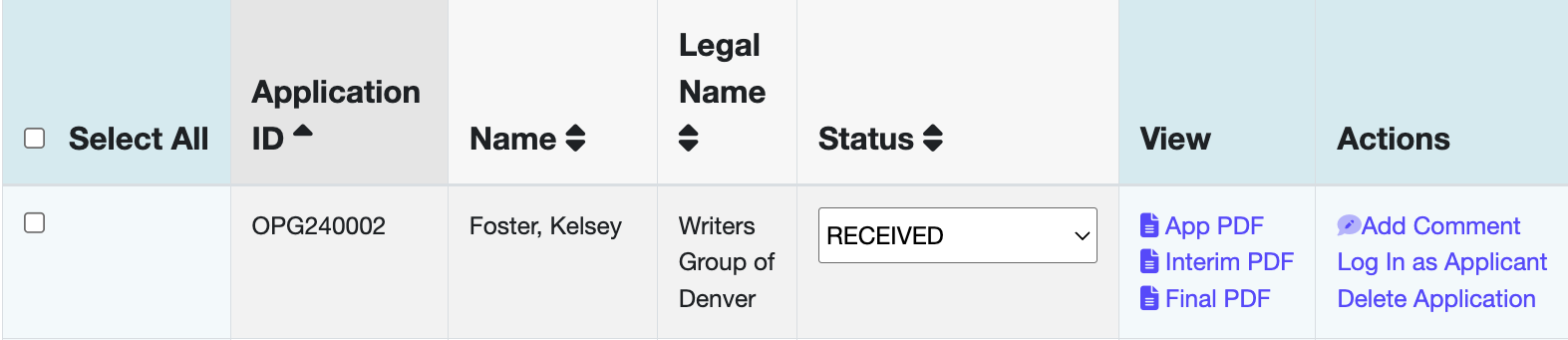
To see what an applicant has written, go to the Grant Manager dashboard. In the column labeled "View," click any of the available links (such as App PDF).
📸 Click here for image alt-text.
A table showing a grant or program application record. The table includes columns for Application ID (OPG240002), Name (Foster, Kelsey), Legal Name (Writers Group of Denver), and Status (a dropdown menu set to "RECEIVED"). The "View" column contains links for App PDF, Interim PDF, and Final PDF. The "Actions" column includes links to Add Comment, Log In as Applicant, and Delete Application.
Browser View: This opens a View-only version of the applicant's Live Form directly in your internet browser.
Printable Version (PDF): If you want to save the file to your computer or print it on paper, click the Print PDF button in the top-right corner of the Browser View.
The content you see is generated the moment you click the link. It reflects the applicant’s responses and your current Form Design.
📝 Note: The View-only version is a "locked" version. Even if an applicant is still working on their Live Form, the version you see in the Browser View will only show what they have saved so far.
⚙️ What content is included in the View-only form, and when is it created?
The system creates (or "caches") a View-only copy on the server every time one of these five things happens:
The applicant saves a page of their Live Form.
The applicant submits their Live Form.
The applicant clicks View PDF from their portal.
The applicant clicks View PDF while inside their Live Form.
The admin clicks a View link in the Grant Manager.
This version pulls in the applicant's latest profile information, their saved answers, and your most recent Form Design (the instructions and questions you created).
💡 Tip: Think of the "cache" like a photo. If you take a photo of a house and then paint the front door red, the photo still shows a white door. You have to take a new photo (clear the cache) to see the red door!
🕵️ What version of the form does a panelist see?
To make the site run faster for reviewers, panelists see the most recently "cached" (saved) version of the View-only form.
Why this matters for Form Design changes: If you change your Form Design (for example, you add new instructions to a page) after a version has already been cached, the panelist may not see your changes.
Example: If you click "App PDF" to review Application #0001, the system saves a "snapshot." If you change your instructions five minutes later, that snapshot for #0001 still has the old instructions.
The Fix: If you make structural changes to your Form Design after you or your applicants have already viewed the PDFs, please reach out to the GO Smart team. We can clear all cached forms so that your panelists see your brand-new updates.
⚠️ Alert: Always double-check your Form Design before your applicants start submitting. It saves you from having to clear the cache later!
