

⏳ Step 1: The Upload
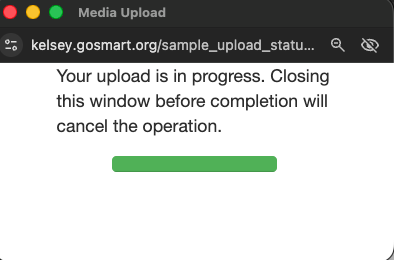
Applicants select a file and click Upload File. An upload progress window will appear, showing the file transferring from their computer to the server.
Example of the upload in-progress window:
📸 Click here for image alt-text.
A "Media Upload" browser window from kelsey.gosmart.org showing an active upload. The text reads: "Your upload is in progress. Closing this window before completion will cancel the operation." A solid green progress bar is displayed below the text.
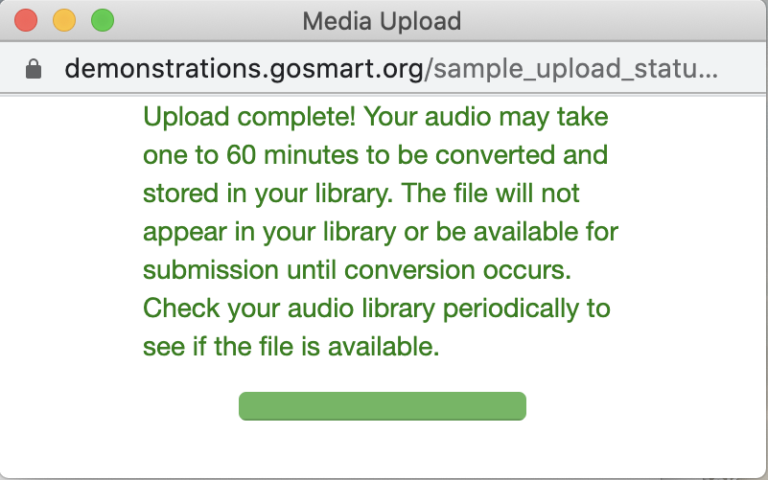
Example of the upload complete window:
📸 Click here for image alt-text.
A "Media Upload" browser window from demonstrations.gosmart.org showing a successful upload. The green text reads: "Upload complete! Your audio may take one to 60 minutes to be converted and stored in your library. The file will not appear in your library or be available for submission until the conversion is complete. Check your audio library periodically to see if the file is available." A full green progress bar is visible at the bottom.
⚠️ Alert: “Upload complete” confirms the file has been successfully uploaded, but does not mean the file has finished converting or is available in the Media Library.
⚙️ Step 2: The Conversion
Once the upload is complete, the system begins converting the file in the background to ensure compatibility across browsers.
Wait Time: This step is not visible and can take anywhere from a few minutes to a few hours, depending on file size.
Status: During conversion, the file may not appear in the Media Library right away.
Limitation: Applicants cannot attach a file to an application while it is still converting.
✅ When is the file ready?
Encourage applicants to confirm their file is fully processed before attempting to submit their application.
Check Back: Applicants should refresh their Media Library every 20–30 minutes.
Verify: Once a thumbnail appears, applicants can click Details to preview the file.
Attach: After confirming the file is available, applicants can return to their application and attach it to the form.
📝 Note: Applicants can edit the title or description of their media after conversion by selecting Modify in the Media Library.
🆘 Troubleshooting
Error Messages: If an error appears immediately after clicking Add, the file may be an unsupported type or exceed size limits. Applicants should review the page instructions for requirements.
Long Delays: If a file remains "Unavailable" or does not appear in the Attach section, applicants should contact your organization for assistance.
⚠️ Alert: Advise applicants not to wait until the final hour before a deadline to upload video or audio files. Conversion times can vary, and last-minute uploads may prevent a successful submission.
