


✍️ Getting Started: Account and Access
Use a computer, tablet, or mobile device with a working internet connection.
Make sure you have a working email address.
To begin, click the Create New Account button to create your profile. The username and password you set will be used every time you log in to this agency’s site.
For future logins, ensure your Username and Password are spelled correctly, including uppercase and lowercase letters. Your login is case-sensitive. This means capital letters and lowercase letters must be exact. Also, be careful not to include extra spaces at the end of your username.
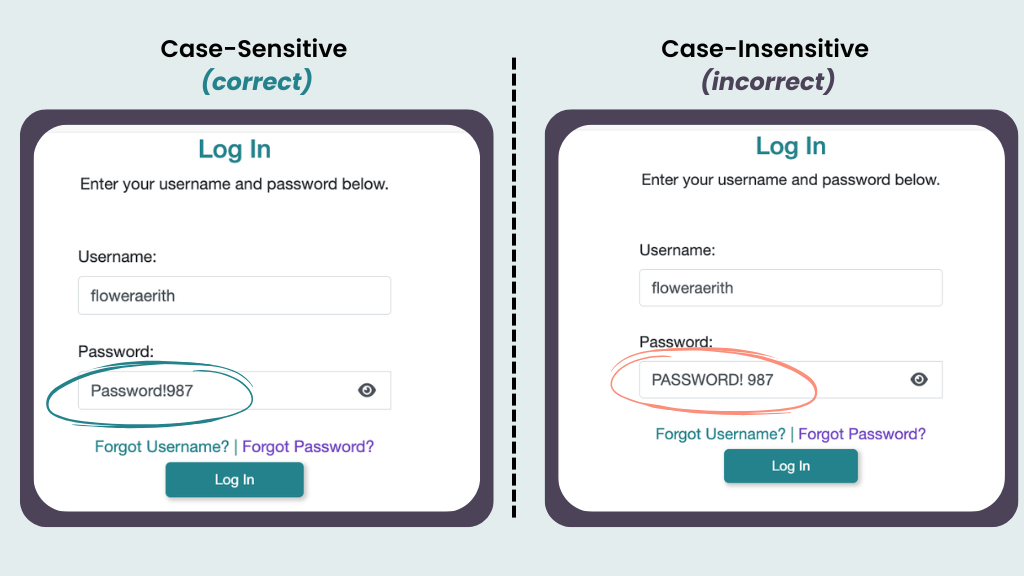
📸 Click here for image alt-text.
A info-graphic contrasting a correct case-sensitive login on the left with an incorrect case-insensitive login on the right. Both sections show the same username, "floweraerith". The correct example shows the password "Password!987" with correct capitalization. The incorrect example shows the password "PASSWORD!987" in all capital letters, demonstrating that the system requires exact case matching.
🔢 Browser and System Requirements
GO Smart is compatible with both Mac and PC computers using current operating systems and current web browsers.
Category | Requirement |
Web Browser | Our system works best with the 2 most recent versions of the system using basic browsers like Chrome, Firefox, Safari. |
Pop-up Windows | These must be enabled for the site to work correctly. |
Cookies | These must be enabled (this is usually already turned on). |
Alerts, Notes, and Tips
⚠️ Alert:
One Person at a Time: Only one person should work on a specific section at a time. If two people save the same page, the last person to click "Save" will overwrite the other person's work.
📝 Notes:
Multiple Accounts: Each grant agency has its own GO Smart site. You must create a new account for every different agency you apply to.
Usernames: Your username must be unique for each site. You can use the same email and password, but the username itself must be different if you are registered on multiple GO Smart sites.
Lost Passwords: If you forget your login info, use the Forgot Username? or Forgot Password? links on the login page. If your email address is outdated, please contact the granting agency to update it first.
💡 Tip: If you experience issues on a phone or tablet (iOS, Android), we recommend using a desktop or laptop.
🖥️ Key Application Actions
💾 Saving Your Work
Click the Save Work button at the bottom of the page often.
Do not use your browser’s "File → Save" menu. That will not save your data in our system.
🎥 A 15-second video shows an applicant clicking Save Work and the page refreshing to confirm the save.
👁️ Previewing and Downloading
Click View PDF at the bottom of the page to see a "view-only" version of your work. This will open in a new tab.
To save a copy to your computer, click Print PDF from that new tab.
If you change your answers, you must refresh the PDF page to see the updates.
📩 Submitting the Application
Review your work page-by-page or check the final PDF.
Click the Save and Submit button.
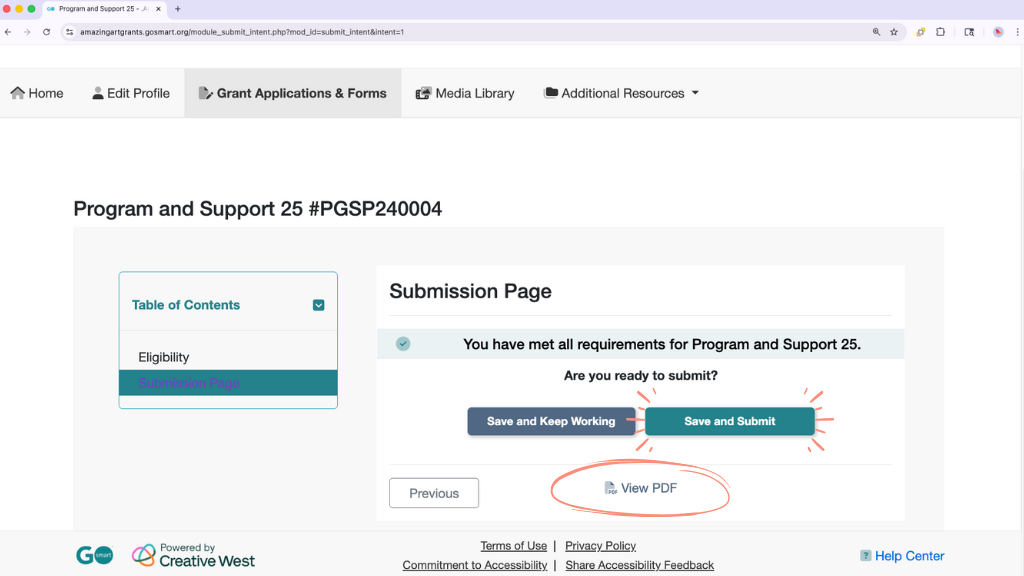
📸 A screenshot of the bottom of a GO Smart application page, highlighting the View PDF button and the final Save and Submit button.
📝 Note: Once you submit, your status changes to "Received." You cannot edit your work anymore unless you ask the grant agency to "unlock" it for you.
💡 Tips:
Drafting: Write your long answers in a program like Microsoft Word or Google Docs first. This makes it easier to count characters and keep a backup copy.
Character Counts: Limits include all spaces and punctuation.
Formatting: Most bolding or italics will not transfer when you copy and paste. Check your final PDF to see how your text looks.
Security: To avoid losing your work if the internet cuts out or the system logs you off, click the Save Work button at the bottom of the page often. This is especially important on pages where you are typing long answers or entering budget numbers.