

🗄️ Search the Applicant Database
Go to the Applicant tab → Applicant Search section.
Search for the applicant using any available field.
Click the email address in the search results to open the default email client.
📋 Retrieve Contact Info via the Dashboard
Go to the Grant Manager tab → Grant Manager Dashboard subtab.
Select the specific Program and Cycle from the dropdown menus.
Locate the applicant in the Applications table.
Choose an action:
Click Login to access the system as that user and retrieve the email from the User Profile.
Click App PDF and select the email link in the header of the read-only form.
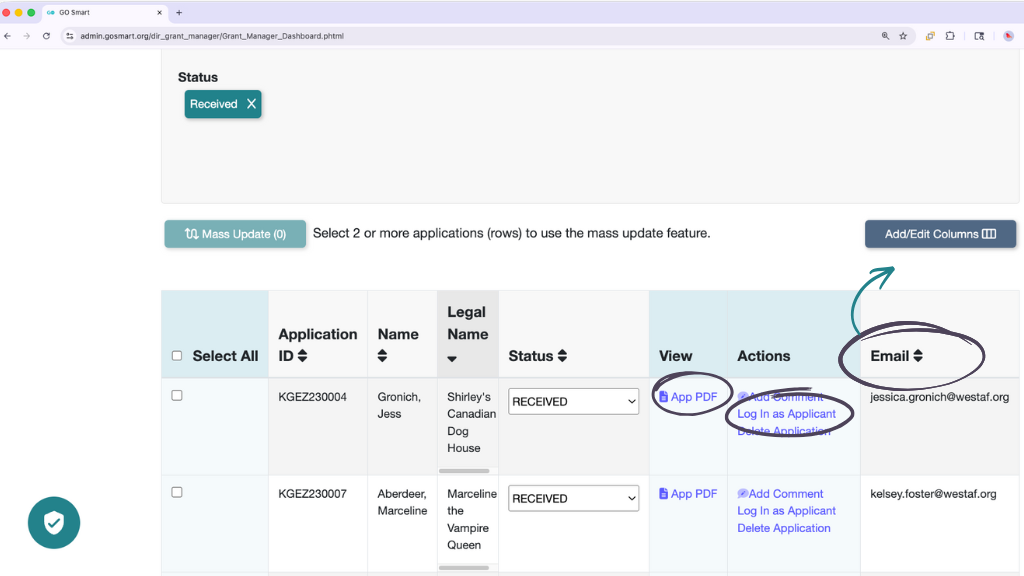
Click the Add/Edit Columns button and check the Email option. The email will now display on the dashboard.
📸 Click here for alt-text
This screenshot of the Grant Manager Dashboard shows a table of applications, with specific administrative tools circled to indicate how to retrieve applicant contact information. Key areas highlighted in the screenshot include: App PDF: A link circled under the "View" column that leads to a read-only version of the application, with an email link in the header. Log In as Applicant: An action circled under the "Actions" column that allows an administrator to log in to the site as that user to view their full account profile. Email Column: A specific data column circled in the main table that displays the applicant's email address directly on the dashboard. Add/Edit Columns: A button circled in the top-right corner with an arrow pointing to the Email column, indicating how users can add the email field to their current dashboard view if it is not already visible.
📝 Note:
Clicking an email address in the GO Smart App PDF opens the default email app on the device (such as Outlook or Gmail).
🗺️ Choosing the Best Search Method
Determine which search method is most efficient for your current task.
If you need to... | Use this Method | Why? |
Find an applicant, but don't know which grant they applied for. | Applicant Search | Search the entire database across all programs. |
See what the applicant sees. | User Profile (via Login) | View their specific dashboard and account details. |
Contact an applicant while reviewing their data. | Application PDF | Provide the email link directly at the top of their application content. |
Grab the emails of multiple applicants. | Email Column | Load the email for all currently viewed applicants in the cycle. |
