

📈 Generate Report
Go to the Reports tab and choose NEA Report subtab.
Select the Program and Cycle for the NEA Report you want to build.
Applications in the Received status will be selected by default, but you can also include any other status(es).
Sort by using the Ordered By and Direction dropdown menus.
NEA Reports will allow you to select either the NEA Codes or General Details (the plain text).
Click Build Report.
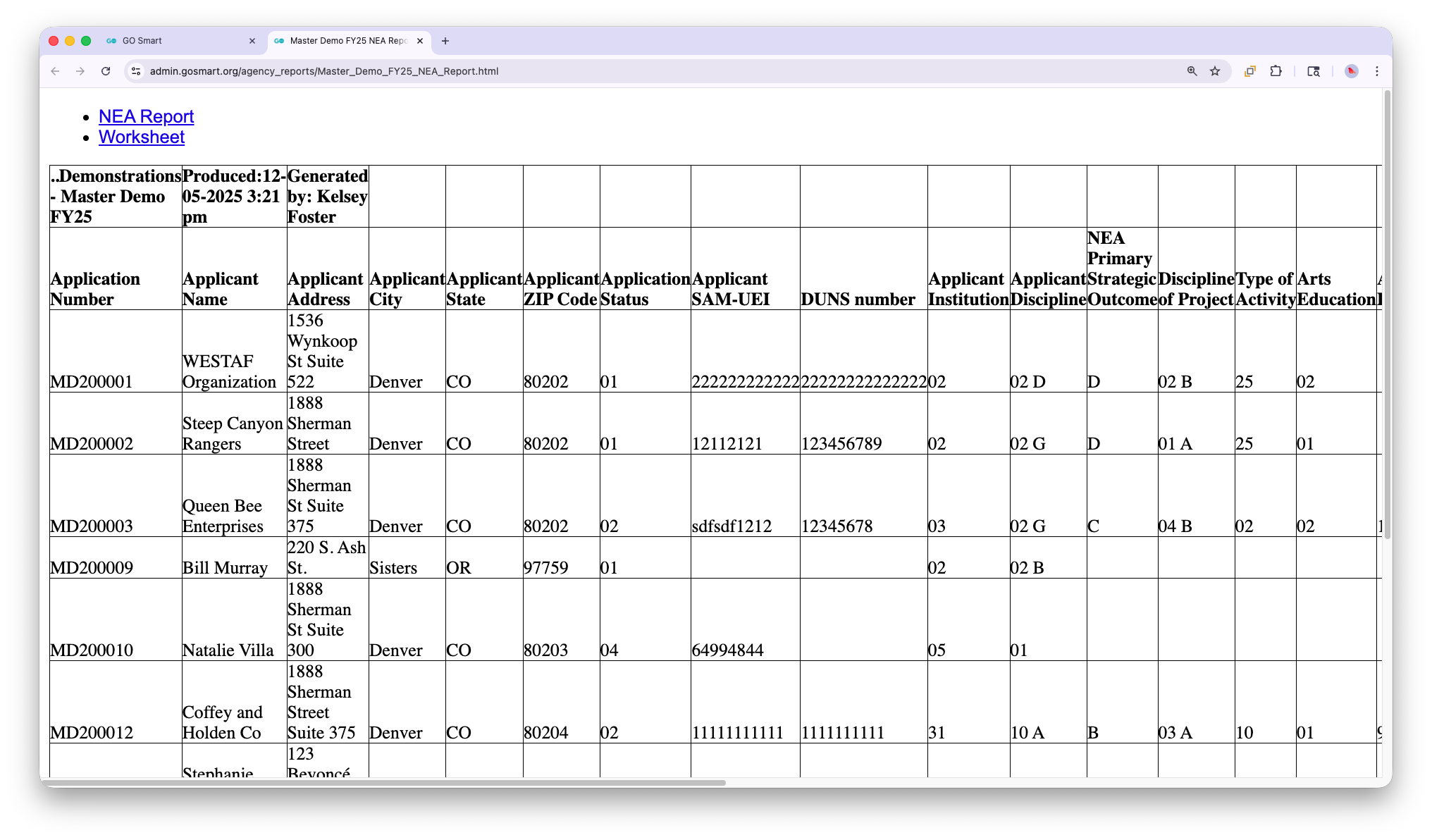
📸 Screenshot image of an NEA report generated with NEA codes.
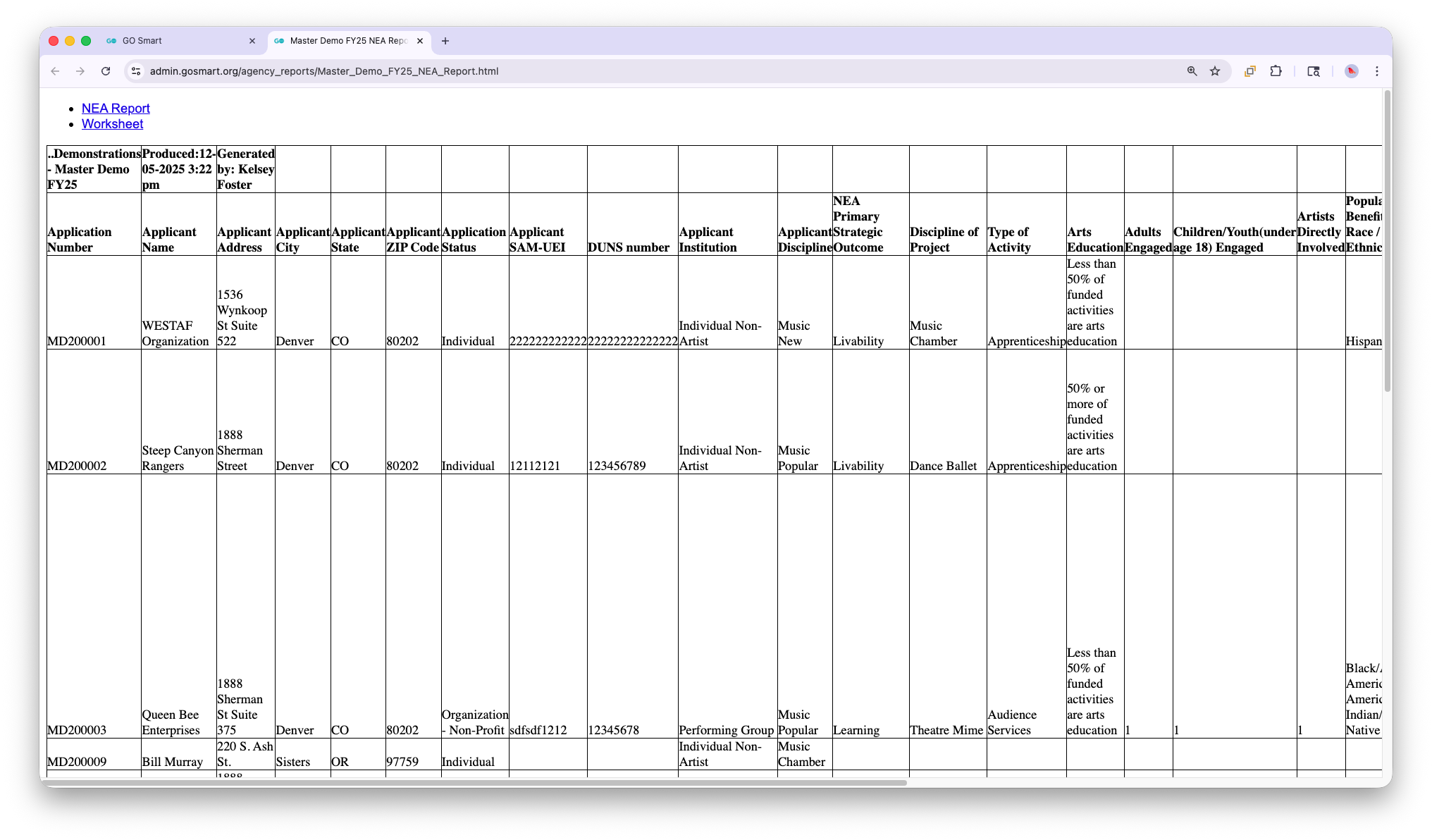
📸 Screenshot image of an NEA report generated with general details.
👁️ View and Download Report
View a browser version of the report by clicking View Report.
Click Download to Excel (to download a CSV spreadsheet file).
Click Build New Report to start over.
📝 Notes:
If you included the NEA template in any forms, you can pull the latest NEA report data and provide it directly to NEA and NASAA.
The report can include FEIN, UEI, or DUNS numbers, based on your NEA Questions page settings.
Retrieve applicant responses as NEA codes or plain text (General Details), making it easy to assess demographics and disciplinary information.
