

🟢 Option 1: Google Sheets
Split the text and rebuild the link using an Array Formula.
Prep your Sheet: Open your report and insert 4 blank columns to the right of your attachment column to act as a "buffer."
Split the Text: * Highlight the column with the links.
Select Data > Split text to columns.
In the "Separator" menu, choose Custom and type:
(http
Clean the Tail: * Highlight the new column (which now contains the URL ending in a parenthesis).
Select Data > Split text to columns again.
Choose Custom and type:
)
Rebuild the Link: * In your next empty buffer column, paste this formula into row 2:
=ARRAYFORMULA("http" & B2:B)(Replace B2:B with the column letter where your incomplete links live).
Clean Up: Hide the "buffer" columns. Do not delete them, or your formula will break!
🔵 Option 2: Microsoft Excel
Excel requires a few extra steps to ensure the link is not only formatted correctly but is also "active" (hyperlinked).
Prep your Sheet: Insert 4 blank columns to the right of your attachment column.
Initial Split:
Highlight the attachment column.
Go to Data > Text to Columns. Select Delimited > Next.
Check Other, type a colon (:), then click Finish.
Remove the Parenthesis:
Highlight the new column (starting with
//).Go to Data > Text to Columns again.
Check Other, type a closing parenthesis, then click Finish.
Add the Prefix:
In the next blank cell, type:
="http:" & B2Drag the corner of the cell down to fill the entire column.
Make it Clickable:
In the next blank column, type:
=HYPERLINK(C2)Drag down to fill. Your links are now live!
🗺️ Choosing the Best Method and Quick Image Reference
Feature | Google Sheets | Microsoft Excel |
|---|---|---|
Speed | ⚡ Fast (Array formula fills all rows at once) | 🐢 Slower (Requires dragging formulas down) |
Difficulty | Moderate | Detailed |
Best For | Quick mass-reviewing of files | Formal audits or offline storage |
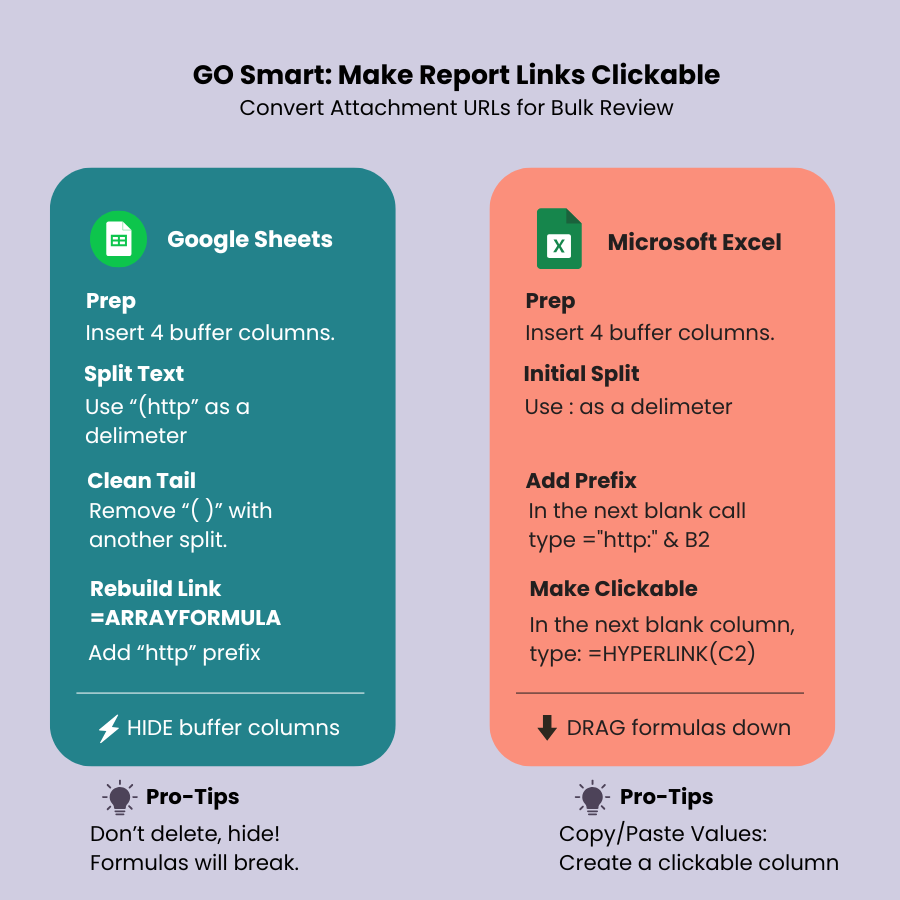
📸 Click here for alt-text.
The graphic is divided into two main colored sections: a teal column for Google Sheets on the left and an orange column for Microsoft Excel on the right. Main Title: GO Smart: Make Report Links Clickable Subtitle: Convert Attachment URLs for Bulk Review Google Sheets Instructions (Teal Section): 1) Prep: Insert 4 buffer columns. 2) Split Text: Use (http as a delimiter. 3) Clean Tail: Remove () with another split. 4) Rebuild Link: Use =ARRAYFORMULA and add the http prefix. 5) Final Action: Hide buffer columns. Pro-Tip: Don’t delete, hide! Formulas will break. Microsoft Excel Instructions (Orange Section): 1) Prep: Insert 4 buffer columns. 2) Initial Split: Use : as a delimiter. 3) Add Prefix: In the next blank cell type ="http:" & B2. 4) Make Clickable: In the next blank column, type =HYPERLINK(C2). 5) Final Action: Drag formulas down. Pro-Tip: Copy/Paste Values to create a clickable column.
💡 Tips:
Don't Delete, Hide: Both methods rely on the "buffer" columns to create the final link. If you delete the middle steps, the final link will show an
#REF!error. Hide those columns to keep your sheet clean.Copy/Paste Values: If you want to delete the buffer columns, select your final "Clickable" column, Copy it, then Paste Special > Values only into a new column. This "freezes" the links so they no longer need the formulas!
🛠️ Troubleshooting Broken Attachment Links
If you click a link in your formatted spreadsheet and receive a "404 Not Found" or "Access Denied" error, check for these three common issues:
1. The "Hidden" Parenthesis
If you missed a step in the "Split Text" process, your link might still have a closing parenthesis at the very end.
The Error:
http://gosmart.org/uploads/file.pdf)The Fix: Ensure your final formula or "Split" action removed the trailing character. A URL must end in the file extension (like
.pdfor.jpg) to work.
2. The Login Barrier
GO Smart URLs are secure. If you are not currently logged into your GO Smart admin account in your default web browser, the link may fail to open.
The Fix: Log in to GO Smart first, then go back to your spreadsheet and click the link again.
3. Applicant Deletion
If an applicant deletes a file and replaces it with a new one after you run your report, the old URL in your spreadsheet will no longer exist.
The Fix: Re-run the Custom Report to ensure you have the most current "live" URLs from the database.
🩺 Troubleshooting Quick Guide
Issue | Likely Cause | Solution |
|---|---|---|
404 Error | Broken URL syntax | Check for extra characters like |
Access Denied | Security session | Log in to GO Smart in your browser first. |
Blank Page | File replaced | Re-run the report to get updated links. |
