

🎥 Click here for video alt-text.
This video shows how to set the order of your grants. You will learn how to group programs and hide old cycles so applicants do not see them. It covers two main settings: program sequence and active cycle order. The program sequence creates the order of programs. The active cycle order creates the order of cycles within a program. The video also shows how to hide cycles from applicants.
↕️ Option 1: Group Cycles by Program (Default)
Use this if you want to keep all active cycles from the same program together on the applicant's Grant Applications & Forms tab.
Go to the Grant Editor tab and choose Programs subtab.
Click the Program you want to update.
Find the Sequence dropdown.
Pick a number to set the order (for example, "1" will show up first) and click Update.
Go to Grant Editor tab, choose Program Cycles subtab and select Configure Cycles section.
Set the Active Cycle Order to choose which cycle appears first within that group.
🎥 35-second video showing the Programs tab with 3 programs in sequence order: 1, 2, 3. The video cuts to the Program Cycles tab, with Program 1 Cycle A set to Active Cycle Order 1. The video also shows what that looks like on the applicant's screen.
🔀 Option 2: Intermix Cycles Across Programs (Override)
Mix the order of cycles from different programs (e.g., Program 1 Cycle 1, Program 2 Cycle 1, Program 1 Cycle 2), and use this override method.
Go to the Grant Editor tab and choose Programs subtab.
Set the Sequence number to "1" for all your programs.
Go to the Grant Editor, select Program Cycles subtab, and choose Configure Cycles section.
Use the Active Cycle Order numbers to set the final order for every single cycle.
🎥 40-second video showing the Programs tab with 3 programs in the same sequence order: 1, 1, 1. The video cuts to the Program Cycles tab, with Program 2 Cycle B set to Active Cycle Order 1. The video also shows what that looks like on the applicant's screen.
💡Tip: You may need to switch between the Programs subtab and the Program Cycles subtab to find out the correct number to set for an active cycle to make sure it appears in the right order.
🔓 Access and Management
📝 Note: Only cycles set to Show will appear on the applicant's dashboard.
💡Tips:
Change the Display setting to Hide for old cycles so applicants cannot see them anymore.
Use the Hide setting if you need to remove a cycle temporarily (for example, while you are reviewing applications).
🧐 Which Option to Choose
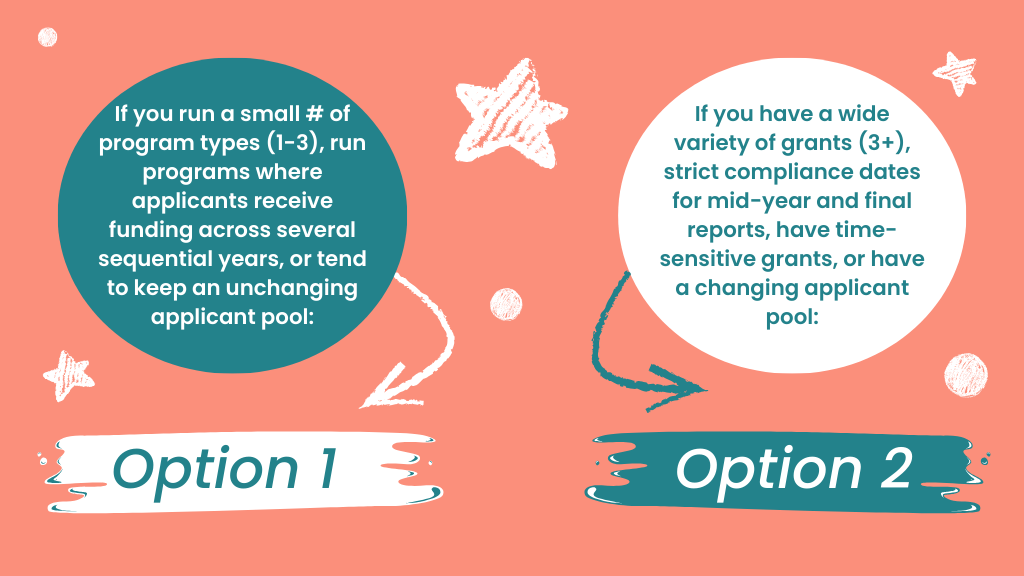
📸 Click here for image alt-text.
Digital graphic comparing two options for ordering the grant applicant dashboard. Option 1 (Grouping Programs) is recommended for a small number of program types (1-3), multi-year funding, or unchanging applicant pools. Option 2 (Intermixing Programs) is recommended for a wide variety of grants (3+), strict reporting compliance dates, time-sensitive grants, or a changing applicant pool.
